|
Decoding MCP Servers |
Image: Google DeepMind |
|
MCP stands for Model Context Protocol. In the simplest terms, it's what allows your AI to talk to the apps you use every day. Gmail, Notion, Figma, Zoom — none of these work with AI out of the box. MCP builds the bridge between them. Think of it this way — your AI is smart, but it's been locked in a room. MCP opens the door. These MCP servers can be officially built by the company behind the app, put together by the open-source community, or even built by you from scratch. |
Why Exactly MCP?Let me paint you a picture. You and your friends are planning a dream trip to Japan. You jumped on Zoom and spent an evening deciding the whole itinerary together — which cities, which days, who's responsible for what. You made a Notion page to document everything. Booked the tickets, and the confirmation landed straight in Gmail. Everything is planned. Everyone is excited. But the information? It's everywhere. The city decisions are buried in a Zoom recording nobody wants to rewatch. The task list is half-updated in Notion. The booking details are somewhere in Gmail under a hundred other emails. You just want one clean page — the Notion doc — with everything in it. The agreed itinerary from the call, the day-by-day plan, and the booking confirmation details. All in one place. But pulling that together manually? That's another hour of your Sunday gone. That's exactly where MCP comes in. With MCP, you just tell your AI — "Read the Zoom call recap, pull the booking confirmation from Gmail, and update my Notion Japan trip page with the full itinerary and ticket details." And it's done. Your Notion page — complete, organised, and ready to share with the group. No tab switching. No copy pasting. No wasted Sunday. MCP gives your AI the ability to actually reach into your apps and work with your real information — turning a scattered mess across three apps into exactly what you wanted, in one place. That's the whole point of MCP — your apps don't live in separate worlds anymore. They're all connected to one AI that knows how to work with all of them. |
What Else Can MCP Servers Do?Each app you use daily can expose a set of tools through its MCP server.
And there are many more apps that now support MCP. |
MCP ArchitectureNow you might be wondering — how does any of this actually work behind the scenes? What's really happening when you send that one message and Claude reaches into three different apps at once? Let's break it down. The three basic components involved in this workflow are —
At its core, every MCP server is built on two layers — Data layer — What gets said. It's the actual conversation between the client and server. What tools are available, what resources can be accessed, what's being requested, what's being sent back. This includes:
Transport layer — How it gets delivered. It's the road the conversation travels on. Are they talking locally on the same machine, or over the internet? This layer doesn't care about what's being said — it just makes sure the message gets from A to B safely.
The client side is built directly into your AI app like Claude or Cursor and works completely invisibly in the background — you'll never see it or touch it. So in this article, I am focusing purely on the server side — which is the part that actually matters to most people. |
A Closer Look at MCP ServersAn MCP server is simply a program that gives your AI access to something — a tool, an app, a file, a database. It's the bridge between your AI and the real world. Some common examples you might already recognise — a server that lets your AI read files, one that connects to GitHub, one that checks your calendar, one that sends Slack messages. Each app gets its own server. What a Server Can Actually DoEvery MCP server is built around three things it can offer your AI: Tools — things the AI can do. Send a message, create a calendar event, search for flights, write to a database. The AI decides when to use these based on what you ask it. Resources — things the AI can read. Your documents, a database, a knowledge base. Read only — the AI looks but doesn't touch. Prompts — ready made instructions that tell the AI exactly how to handle a specific task. Like a cheat sheet for the AI — "when the user asks to plan a trip, here's how to approach it." How Tools Actually WorkEvery tool has a name, a description, and a defined set of inputs it expects. When you ask your AI something, it scans the available tools, picks the right one, and calls it with the correct inputs. Behind the scenes there are just two operations:
So for the Japan trip — Claude first checks what the Notion server can do, finds the update page tool, and calls it with your itinerary details. That's it. How Resources Actually WorkEvery resource has a unique address — think of it like a web link, but for data. Resources come in two types — fixed ones that always point to the same thing, and dynamic ones that accept parameters like a city name or a date.
How Prompts Actually WorkPrompts are templates with slots you fill in. Like a form. You pick the prompt, fill in the details, and the AI knows exactly how to handle the rest.
Most apps expose these as slash commands — like typing |
Bringing It All TogetherThis is where MCP gets really powerful — not just one server, but multiple servers all working together through a single conversation with your AI. You've already seen what happened with the Japan trip. Now let's go one level deeper and see how it actually worked behind the scenes — the exact MCP operations that fired when you sent that one message. Step 1 — You send one message "Read the Zoom call recap, pull the booking confirmation from Gmail, and update my Notion Japan trip page with the full itinerary and ticket details." That single message triggers a precise sequence of MCP operations across three servers. Step 2 — Claude discovers what each server can do
Before touching anything, Claude calls
Claude now knows exactly what it can do — and what it can't. Step 3 — Claude reads your data first
With the tools mapped out, Claude calls Step 4 — Claude takes one targeted action
Now that it has all the context, it makes a single write call — Step 5 — You get the result Your Notion page is updated. Complete itinerary. Ticket details. Day-by-day plan. Everything in one place — exactly how you wanted it. Here's a simple workflow diagram of the following steps — 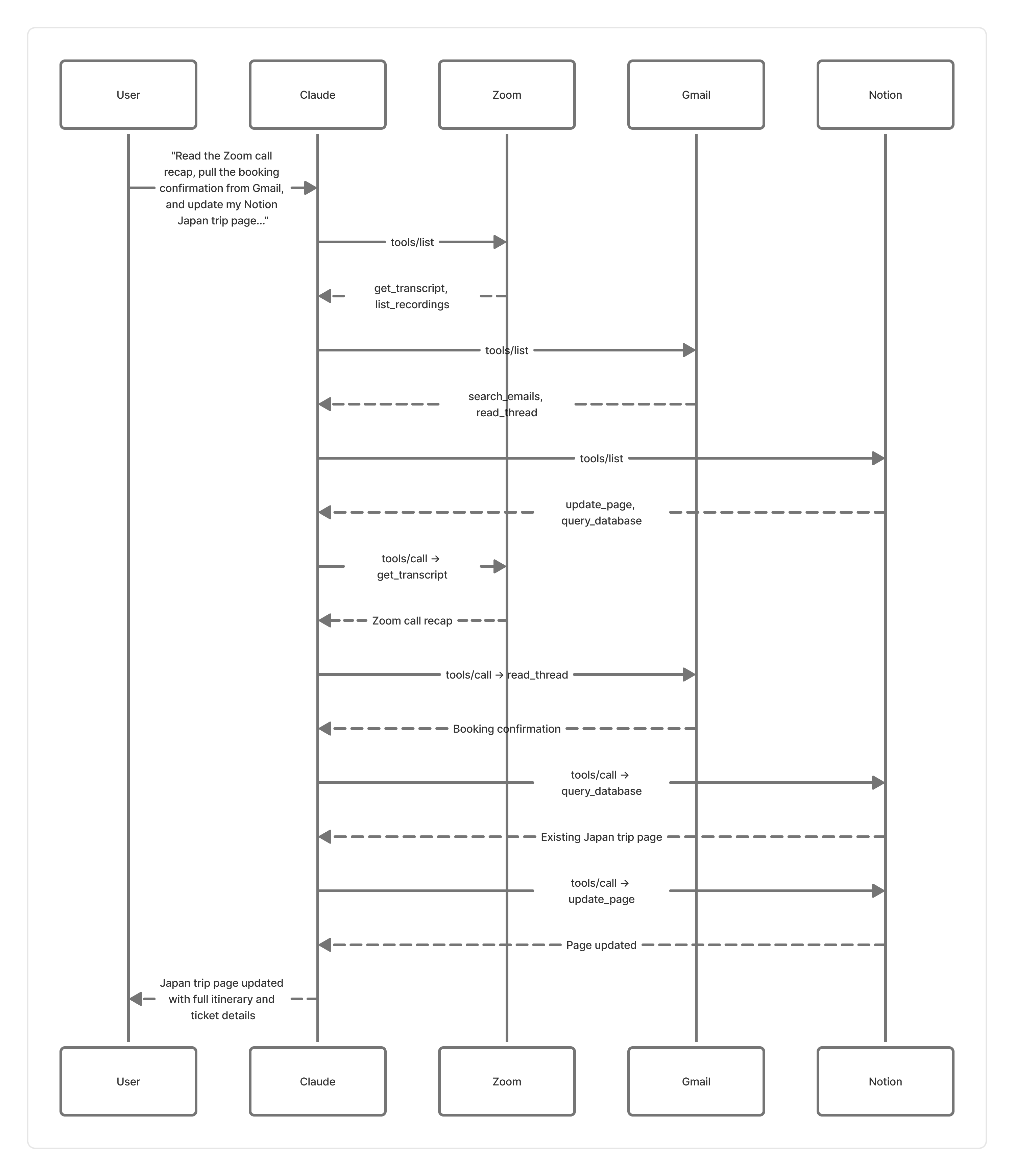
No tab switching. No copy-pasting. No wasted Sunday.
Three servers. Three
The tool names used above are simplified to help illustrate how the flow works. The actual names vary depending on which MCP server you have installed and how it was built. |
Wrapping UpMCP servers are not just a developer tool or a tech industry buzzword. They are the missing piece that the AI world has needed for a long time. For years, AI was smart but isolated — sitting in a tab, disconnected from everything that actually matters to you. Your files, your meetings, your emails, your plans. All of it out of reach. MCP changes that. It gives AI a standardised way to reach into every app you use, understand your real context, and actually do things on your behalf. Not just answer questions — but get things done. And the best part? You don't need to be a developer to benefit from it. You just need the right servers connected and one good prompt. The ecosystem is still young and growing fast — new servers are being built every week, more apps are adding official support, and the experience is getting smoother by the month. The foundations are solid and the direction is clear. We are moving from AI that talks to AI that acts. MCP is what makes that possible. |
|
|